How to Collect Website Feedback: 5 Methods & Examples
Written by the tinyDialog team
Last reviewed:
To collect feedback on a website, pick one page or task you want to improve and ask one specific question while the experience is fresh. Put a feedback widget on the page if visitors need to report something as they browse. Use an embedded survey to show the same question at a clear stopping point, such as the end of a help article or a confirmation screen.
Start with a decision your team can make. If you’re deciding whether to rename a pricing tier, find out what visitors thought the current name meant.
Choose a feedback method
| Method | Question it can answer | Who you’ll hear from |
|---|---|---|
| Feedback widget | What did a visitor notice or run into on this page? | Visitors who choose to open the widget. |
| Embedded survey | Did this page or step give visitors what they needed? | Visitors who reach the question and choose to answer. |
| Contact form | What does someone need our team to help with? | Visitors who seek out a way to contact you. |
| Email survey | How did a recent experience go after the visitor left the site? | People you can email who choose to reply. |
| Moderated research | How do people try a task, and where do they hesitate? | Participants you recruit and observe in a session. |
Where to ask and what to say
Place the question where visitors have enough experience to answer it. Start with one prompt and keep the visitor’s next action easy to find.
- Beside a size guide. Put a Give sizing feedback button next to the chart so shoppers can open it after checking their measurements. Ask “What, if anything, was hard to work out from this size guide?”
- On a setup confirmation screen. Embed a question below the success message after someone connects a calendar. Ask “What, if anything, was unclear while connecting your calendar?” Keep the next step visible.
- On a contact page. Link to the form from the help menu so visitors can reach it whenever they need a reply. Ask “What would you like help with?” and provide a field for their reply address.
- In an email after pickup. Send it after the order has been collected, when the customer can comment on the full experience. Ask “What, if anything, would have helped you find the pickup point?”
- In a scheduled research session. Open the pricing page with a participant and ask “Can you show me how you’d check the price for a team of five?” Let them try before asking what they expected to see.
A confirmation-screen survey reaches people who finished. To learn about failed attempts, give visitors an optional way to report what happened next to the retry instructions, and leave the retry button easy to reach.
Collect feedback on a help page with TinyDialog
Suppose your help page explains how to reschedule an order pickup. Add a Give feedback on these instructions button below the steps. It opens a TinyDialog popup when a reader clicks it, so they can comment while the instructions are in view.
- Create a text survey with the question “What, if anything, is still unclear about rescheduling your pickup?”
- Find the survey ID under Setup & Connections. Add the TinyDialog script to the help page and set
data-tinydialog-openwidgeton your button to that survey ID. See the script and button markup in TinyDialog’s HTML installation guide. - Click the button on the page, send a test comment, and confirm it appears in the survey’s responses in the dashboard.
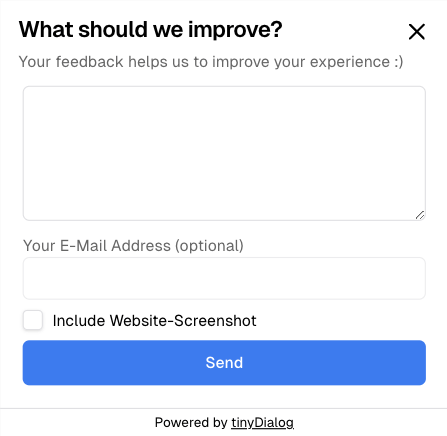
An example of the TinyDialog text popup a reader opens from a feedback button.
If several readers ask whether they can reschedule on the day of pickup, add the deadline next to the rescheduling step. Check whether the same question keeps appearing in new feedback and support messages.
Use feedback alongside analytics and interviews
A widget complements analytics and interviews. Analytics shows where people stop or continue. A widget captures what visitors say happened in the moment. Interviews let you ask follow-up questions, and a moderated task lets you observe what someone does.
Say analytics shows that visitors often leave an export flow at the format picker. If widget comments mention difficulty finding CSV, ask participants who need spreadsheets to try an export. Watch where they look. If they skip over the option labeled “Delimited text,” test a clearer label and track export completions after the change.
People who volunteer comments may have different experiences from other visitors. Use their responses to find issues worth investigating, then measure the related behavior across visitors who reached the same step. Read more about selection bias in the customer feedback glossary.
Website feedback checklist
- Pick a decision and a method. Name the page or task you want to improve, whose experience matters, and what you could change.
- Write one question and choose when to ask. Record the page or step with each answer so the team can interpret it later.
- Test from the visitor’s side. Check the prompt on mobile and desktop, try it with a keyboard, and confirm a sample answer reaches the review queue.
- Set a review cadence. Assign an owner to read responses each week, group them by issue, and route requests that need a reply.
- Make a change and check the result. Use frequency, severity, and other evidence to pick a fix. Record what changed and review the next round of feedback and the relevant analytics.
If visitors need a way to comment on the page they’re using, add a TinyDialog feedback widget to your website.