Add a website bug report widget with screenshots
Turn a lightweight feedback widget with screenshot capture into a website bug reporter. Collect opt-in viewport screenshots alongside the page URL, browser, OS, viewport size, and custom app tags.
Try a website bug report widget with screenshots
Switch between sample web pages below, toggle the opt-in Include Screenshot checkbox on or off, enter or pick a bug report, and inspect both the tinyDialog dashboard card and the GET /api/v1/responses JSON payload.
shop.northstar-goods.com/checkoutOrder summary · $128.00
Pay button disabledCode SAVE20 applied — waiting for discount response…
Report a bug on this page
Page URL, browser, OS, and viewport size are attached automatically.
Add a bug report widget to your website in 3 steps
- Create a Text Input survey in the tinyDialog dashboard. Turn on screenshot capture in the survey settings (available on Pro at $19.95/month for 500 responses/month; Free is $0/month for 25 responses/month without screenshots). Optionally customize the checkbox label (defaults to
Include Screenshot, up to 128 characters) and enable the optional email field. - Open Setup & Connections, copy your survey ID, and add a trigger button plus the tinyDialog browser script before
</body>. Because screenshots are captured by the host-page JavaScript SDK (@tinydialog/sdk-js), screenshot capture works on websites and web apps—not in Notion embeds. - Open your published page, click Report a bug, leave Include Screenshot checked, complete the Cloudflare Turnstile check, and submit a test report. Confirm the screenshot and environment context appear in the survey’s Responses tab.
<button type="button" data-tinydialog-openwidget="YOUR_SURVEY_ID">
  Report a bug
</button>

<script
  type="module"
  src="https://cdn.jsdelivr.net/npm/@tinydialog/sdk-js@latest/dist/browser.js"
></script>
Need a floating feedback button or inline survey on marketing pages instead? See the website feedback widget setup or the HTML and JavaScript installation guide.
Optional: attach release version, feature area, and user contact with the JS SDK
In a web app or SPA, open the bug report widget with showWidget() from @tinydialog/sdk-js to attach the signed-in user and flat extraData tags like release, area, and plan. For event-triggered SaaS surveys, see our in-app feedback widget guide.
import {showWidget} from '@tinydialog/sdk-js';

export function openBugReporter(area: string) {
  showWidget('YOUR_SURVEY_ID', {
    side: 'BOTTOM_RIGHT',
    user: currentUser?.email, // optional email or internal user ID
    extraData: {
      release: process.env.NEXT_PUBLIC_APP_RELEASE ?? '2026.11.4',
      area,
      plan: currentUser?.plan ?? 'anonymous',
    },
  });
}
How opt-in screenshot capture works
Reproducing a user-reported bug shouldn’t take five back-and-forth emails asking which browser or screen broke. tinyDialog’s feedback widget with screenshot capture keeps setup minimal while respecting visitor privacy:
- 1. Explicit visitor opt-in inside the widget
- Screenshots are never grabbed silently. Visitors choose whether to check
Include Screenshot(you can customize the label up to 128 characters to match your language or tone). - 2. Compact visible-viewport capture in the browser
- When checked,
@tinydialog/sdk-json the host page captures the visible viewport viahtml-to-image, scales it down to a maximum width of 1080px, and uploads a JPEG under 150 KB alongside the report. - 3. Automatic Cloudflare Turnstile protection
- Whenever screenshots are enabled on a survey, tinyDialog automatically enforces Cloudflare Turnstile captcha so automated bots cannot flood your bug inbox or screenshot storage.
What every website bug report captures
Every submission combines the visitor’s note with automatic page and device context, plus optional screenshots, contact details, and custom SDK tags:
Bug description
Required (visitor)- How it is captured
- Typed by the visitor in the Text Input widget.
- Where it appears
- Dashboard, Responses API (response.value), CSV export, and all connectors.
Viewport screenshot
Opt-in (Pro)- How it is captured
- Captured by @tinydialog/sdk-js via html-to-image (JPEG, max 1080px wide, under 150 KB) when the visitor checks “Include Screenshot”.
- Where it appears
- Dashboard and Responses API as a 5-minute presigned screenshotUrl (not in CSV exports or generic/full webhooks).
Page URL, browser, OS & viewport size
Automatic- How it is captured
- Recorded automatically from the host page (window.location.href, browser, operating system, and screenSize).
- Where it appears
- Dashboard and Responses API. URL, browser, and OS are also included in CSV exports and full webhooks.
User email or ID
Optional- How it is captured
- Passed via the SDK user option or entered in the widget’s optional email field.
- Where it appears
- Dashboard (Contact badge), Responses API (respondent.contact), CSV export (respondentContact), and full webhooks.
Custom context (extraData)
Optional (JS SDK)- How it is captured
- Flat Record<string, string> tags (such as release, area, or plan) passed to showWidget() or loadSurvey().
- Where it appears
- Dashboard and Responses API (GET /api/v1/responses). Not exported in CSV files or generic/full webhooks.
Triage and route bug reports to your team
Review reports in the tinyDialog dashboard or send new submissions directly into the chat channels and automations your engineering team already watches:
Inspect screenshots & tags in the dashboard
Open each submission to view its attached viewport screenshot alongside Contact, page URL, browser, OS, viewport size, and custom extraData badges. On Pro, use AI topic detection to group recurring bug reports.
Alert Slack, Discord, Telegram, or webhooks
Connect Setup & Connections to Slack, Discord, Airtable, n8n, Telegram, or a generic or full webhook (full webhooks include respondentContact, respondentBrowser, respondentOperatingSystem, and respondentUrl).
Sync full payloads via the Responses API
Query GET /api/v1/responses for structured JSON with respondent metadata, extraData, topics, and a 5-minute presigned screenshotUrl to sync into your issue tracker.
Export summary sheets to CSV
Download CSV files with timestamp, response, respondentContact, respondentUrl, respondentOperatingSystem, and respondentBrowser. Use the dashboard or Responses API when you also need screenshots or extraData.
Deciding how bug reports fit alongside general site surveys, usability testing, and user interviews? Read our guide to collecting website feedback, or compare the website feedback widget setup and in-app feedback widget guide.
What you can do with tinyDialog

Data connectors
Forward new responses to Slack or Discord. Use a webhook to send feedback to an Airtable, Zapier, or n8n workflow.
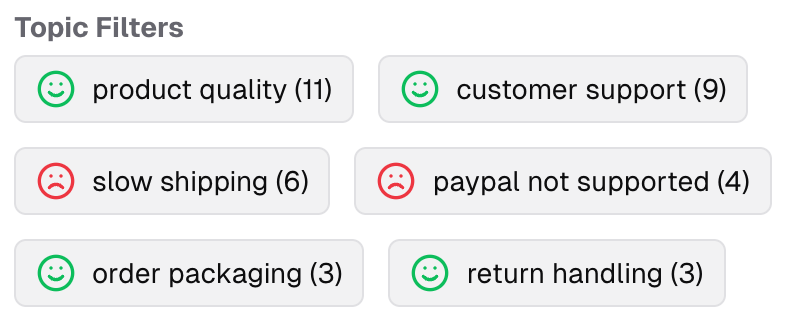
AI topic detection
On Pro, group feedback by topic and filter responses in the dashboard to see what visitors bring up repeatedly.


Spam protection
Enable Cloudflare Turnstile on your widget to help filter automated submissions.
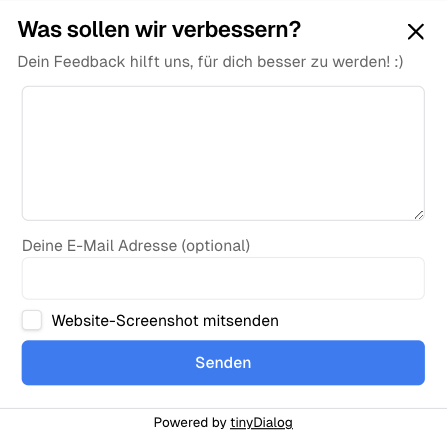
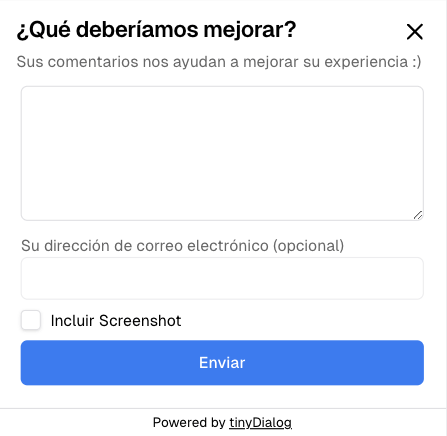
Widget localisation
Write the question, button label, and other widget text in your audience’s language.
Frequently asked questions
- How does the feedback widget with screenshot capture work?
- When screenshots are enabled on a survey, visitors see an opt-in checkbox inside the widget (labeled “Include Screenshot” by default, customizable up to 128 characters). If checked, the host-page JavaScript SDK (@tinydialog/sdk-js) captures the visible viewport using html-to-image, scales it to a max width of 1080px as a JPEG under 150 KB, and uploads it alongside the submission.
- Is screenshot capture included in the Free plan?
- No. Screenshot capture is a Pro plan feature ($19.95/month with 500 responses per month). The Free plan ($0/month with 25 responses per month) lets you run the website bug report widget with automatic page URL, browser, operating system, and viewport size metadata—without screenshots.
- Why does enabling screenshots turn on Cloudflare Turnstile captcha?
- tinyDialog automatically requires and enforces Cloudflare Turnstile captcha whenever screenshots are enabled on a survey. This blocks automated spam submissions and protects your screenshot uploads.
- Can I attach a release version, product area, or user email to each bug report?
- Yes. Call showWidget() or loadSurvey() from @tinydialog/sdk-js with an optional user value (email or internal ID) and a flat extraData object of string key-value pairs like release, area, or plan. Custom extraData tags are visible in the tinyDialog dashboard and the Responses API (GET /api/v1/responses), and are not exported in CSV files or generic/full webhooks.
- Where can my team access screenshots and environment metadata?
- You can view attached screenshots and all environment badges directly in the tinyDialog dashboard. Via the Responses API (GET /api/v1/responses), each response includes respondent details, extraData, topics, and a screenshotUrl presigned URL that expires after 5 minutes. CSV exports include timestamp, response, respondentContact, respondentUrl, respondentOperatingSystem, and respondentBrowser, while full webhooks include respondentContact, respondentBrowser, respondentOperatingSystem, and respondentUrl.
- Does screenshot capture work in Notion embeds as well as websites?
- No. Screenshot capture requires the tinyDialog JavaScript SDK on the host page, so it works on websites, web apps, and CMS pages that allow scripts, but is not available in Notion embeds.
Create your first survey
Start free with 25 responses per month.
Start free