Accessible feedback widget for WCAG 2.2 AA & EN 301 549
Default tinyDialog widget designs undergo automated accessibility testing against WCAG 2.0 AA, WCAG 2.2 AA, and EN 301 549. Pair the isolated iframe widget with your own semantic button or inline container for keyboard and screen-reader users.
Set up an accessible feedback widget in 3 steps
- Create a survey in the tinyDialog dashboard. Keep a default widget design—automatically tested against WCAG 2.0 Level AA, WCAG 2.2 Level AA, and EN 301 549—and customize the question, options, and submit button text so they match your page’s language.
- Open Setup & Connections, copy your survey ID, and bind it to your own semantic
<button type="button">with visible text and a high-contrast:focus-visibleoutline. - Test the published page with keyboard navigation, an automated Axe scan, and a quick screen-reader check (VoiceOver, NVDA, or TalkBack). Confirm responses arrive in tinyDialog.
<!-- Recommended: your own semantic button with visible text & focus ring -->
<button
  type="button"
  class="feedback-trigger"
  data-tinydialog-openwidget="YOUR_SURVEY_ID"
>
  Give feedback
</button>

<style>
  .feedback-trigger {
    min-height: 44px;
    padding: 0.625rem 1rem;
  }
  .feedback-trigger:focus-visible {
    outline: 2px solid #b41060;
    outline-offset: 2px;
  }
</style>

<script
  type="module"
  src="https://cdn.jsdelivr.net/npm/@tinydialog/sdk-js@latest/dist/browser.js"
></script>
Why bind your own button instead of the auto-generated floating button?
The optional data-tinydialog-floating-button attribute creates a <button> with an SVG icon. Binding your own labeled <button type="button" data-tinydialog-openwidget="YOUR_SURVEY_ID"> gives you full control over visible label wording, language matching, tap-target size, placement, and focus styles—or embed the survey inline inside a labeled landmark so keyboard users reach it naturally in document tab order:
<!-- Alternative: inline embed in natural document tab order -->
<section aria-label="Page feedback">
  <div data-tinydialog-widgetcontainer="YOUR_SURVEY_ID"></div>
</section>

<script
  type="module"
  src="https://cdn.jsdelivr.net/npm/@tinydialog/sdk-js@latest/dist/browser.js"
></script>
Need full JavaScript SDK options, an inline “Was this page helpful?” bar, or bug reports with screenshots? Compare the website feedback widget setup, documentation feedback widget guide, and website bug report widget, or read the HTML and JavaScript installation docs.
WCAG 2.2 AA & EN 301 549 readiness checklist
Accessibility is shared between your feedback widget and the host page. Automated testing on default tinyDialog designs is a solid technical foundation for WCAG 2.2 AA, EN 301 549, and European Accessibility Act (EAA) readiness—not a legal compliance certificate. Here is what tinyDialog covers and what your site team should verify:
Automated widget testing (WCAG 2.0/2.2 AA & EN 301 549)
- What tinyDialog handles
- Runs automated accessibility checks on default widget designs against WCAG 2.0 Level AA, WCAG 2.2 Level AA, and EN 301 549.
- What your site team verifies
- Run manual keyboard-only and screen-reader passes (NVDA, VoiceOver, or TalkBack) on the live host page before release.
Iframe naming & CSS isolation (WCAG 4.1.2)
- What tinyDialog handles
- @tinydialog/sdk-js sets aria-label="tinyDialog survey widget" on the survey iframe and isolates widget styles so host CSS cannot break layout or contrast.
- What your site team verifies
- Allow the widget iframe in your Content Security Policy and avoid hiding or clipping the container with aria-hidden or overflow rules.
Trigger semantics & focus indicator (WCAG 2.1.1, 2.4.7, 2.5.8)
- What tinyDialog handles
- Binds cleanly to your own <button type="button" data-tinydialog-openwidget="..."> or embeds inline via data-tinydialog-widgetcontainer.
- What your site team verifies
- Use a native <button type="button"> with clear text (or aria-label), keep tap targets >= 40x40 px, and preserve a high-contrast :focus-visible outline.
Color contrast & custom CSS (WCAG 1.4.3, 1.4.11)
- What tinyDialog handles
- Default widget designs are built and automatically checked for readable text and control contrast.
- What your site team verifies
- If you customize colors or add custom CSS (available on Plus and Pro), verify >= 4.5:1 text contrast and >= 3:1 contrast for borders, controls, and focus rings.
Language & localization (WCAG 3.1.1, 3.1.2)
- What tinyDialog handles
- Widget localization lets you customize the question, answer options, submit button, and user-facing strings in your audience’s language.
- What your site team verifies
- Match your localized widget text to your host page’s <html lang="..."> attribute so screen readers pronounce prompts with the right voice.
Reflow, zoom & placement (WCAG 1.4.4, 1.4.10)
- What tinyDialog handles
- Supports inline placement in normal document flow or button-triggered popups so you control where feedback lives on small screens.
- What your site team verifies
- Check at 200% zoom and 320px width that triggers never cover primary navigation, cookie banners, or focused links.
Practical tips for EAA & EN 301 549 feedback forms
Whether you maintain an EU public-sector site, an e-commerce store preparing for the European Accessibility Act (EAA), or a SaaS product audited against WCAG 2.2 AA, a few engineering habits keep your feedback widget reliable for everyone:
Keep iframe isolation working for you
Because @tinydialog/sdk-js renders inside an iframe labeled tinyDialog survey widget, aggressive host CSS resets or dark-mode filters won’t accidentally wash out widget text or radio controls.
Audit custom colors and CSS
Automated checks cover tinyDialog’s default widget designs. If you customize colors or inject custom CSS (available on Plus and Pro), verify 4.5:1 text contrast, 3:1 control borders, and visible focus rings before publishing.
Match widget wording to page language
Use tinyDialog’s widget localization to write the question, options, and submit button in the same language as your page’s lang attribute—especially on multilingual EU websites.
Use it on your accessibility statement
Embed an inline survey on your accessibility statement so visitors can report barriers quickly. Pair widget reports with broader research using our guide to collecting website feedback.
What you can do with tinyDialog

Data connectors
Forward new responses to Slack or Discord. Use a webhook to send feedback to an Airtable, Zapier, or n8n workflow.
AI topic detection
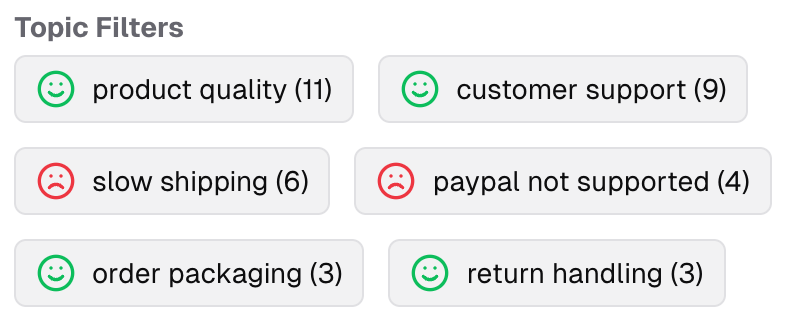
On Pro, group feedback by topic and filter responses in the dashboard to see what visitors bring up repeatedly.
Spam protection
Enable Cloudflare Turnstile on your widget to help filter automated submissions.
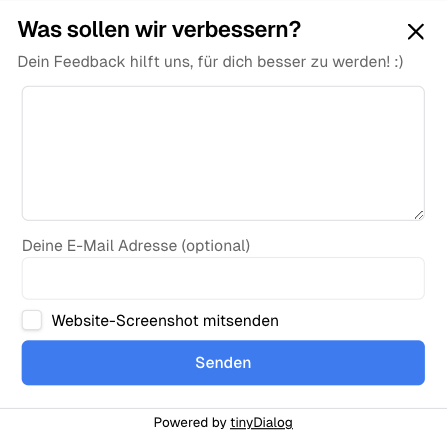
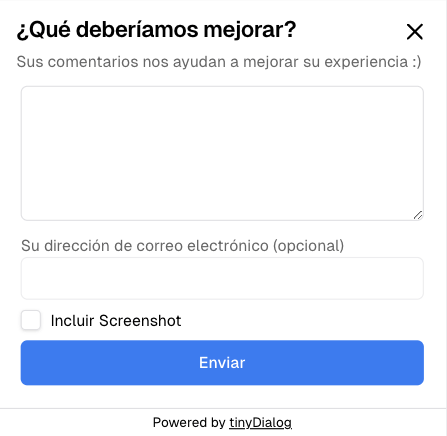
Widget localisation
Write the question, button label, and other widget text in your audience’s language.
Frequently asked questions
- Does tinyDialog guarantee WCAG 2.2 AA, EN 301 549, or EAA legal compliance?
- No widget vendor alone can issue a legal compliance certificate. For default widget designs, tinyDialog runs automated accessibility testing against WCAG 2.0 Level AA, WCAG 2.2 Level AA, and EN 301 549, giving your team a strong foundation. You still own host-page trigger semantics, any custom color or CSS contrast changes, and manual keyboard and screen-reader testing.
- Should I use my own button, an inline embed, or the floating button for accessibility?
- For the strongest accessibility control, bind your own semantic <button type="button" data-tinydialog-openwidget="YOUR_SURVEY_ID"> with visible text (or an aria-label) and a clear focus ring, or embed the widget inline inside a labeled <section>. The auto-generated floating button via data-tinydialog-floating-button renders a <button> with an SVG icon, so using your own labeled button makes it easier to control text, language, tap size, and focus styles.
- How does the tinyDialog iframe work with screen readers and host CSS?
- The @tinydialog/sdk-js SDK sets aria-label="tinyDialog survey widget" on the survey iframe so assistive technology identifies the frame clearly, and isolates widget markup inside the iframe so host stylesheets do not override form layout or color contrast.
- Can I localize the feedback widget to match my page language?
- Yes. You can customize the survey question, options, button labels, and other user-facing widget text in your audience’s language so the widget matches your site’s lang attribute.
- What should our team check if we customize colors or add custom CSS?
- Whenever you customize widget colors or add custom CSS (available on Plus and Pro plans), re-check that normal text maintains at least a 4.5:1 contrast ratio, form borders and UI controls maintain at least 3:1 contrast, and keyboard focus outlines stay clearly visible.
- Can we embed tinyDialog as the feedback form on an accessibility statement page?
- Yes. Placing an inline tinyDialog widget inside a labeled section on your accessibility statement or help pages lets visitors report barriers in context, and you can forward new submissions to Slack, email summaries, or webhooks under Setup & Connections.
Create your first survey
Start free with 25 responses per month.
Start free